The list everyone assumes somebody else has
Ask a Workday team how many integrations they run and you'll usually get a number. Ask where the number came from and things get vaguer.
Quite often it comes from a spreadsheet put together during the implementation. It was right on the day the tenant went live. Since then a couple of vendors have changed, a few integrations have been rebuilt in Studio, one or two were switched off, and others were added during projects that never touched the spreadsheet. Sometimes the person who kept it has moved on and nobody picked it up.
It usually comes to light at an awkward moment. An auditor asks which systems receive employee data. A vendor writes to say their file format is changing next month and asks which integration sends to them. A new integration lead joins and wants to know what they're now responsible for, which is a perfectly fair thing to ask.
Most of what you need to answer those questions is already in the tenant. It's spread across several places, and some of it isn't labelled as an integration at all.
What actually counts
The obvious starting point is the integration systems. That covers EIBs, Core Connectors, Cloud Connect packages, Studio builds, PECI and the rest. Each one is a configured object with a template, a schedule and a history of events, and Workday will list them for you. Most lists already include these.
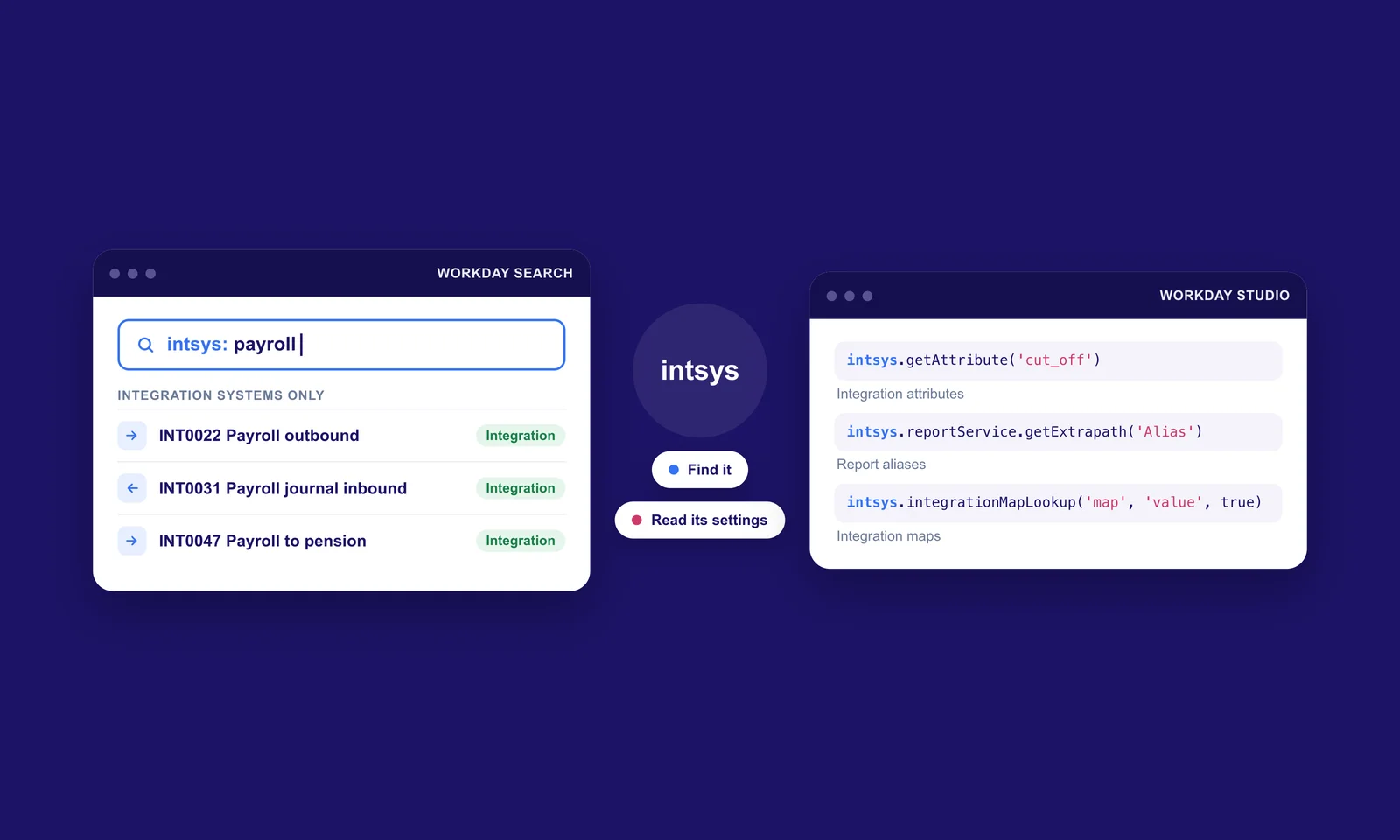
A fair amount of traffic in and out of a tenant never goes near an integration system. A payroll or analytics vendor might pull a custom report over a web service every night. A third party app might call the Workday API directly using its own credentials. Neither shows up as an integration system. They still move data out of the tenant, on a schedule that someone outside your team controls. When an auditor asks about integrations, that's very much part of what they mean.
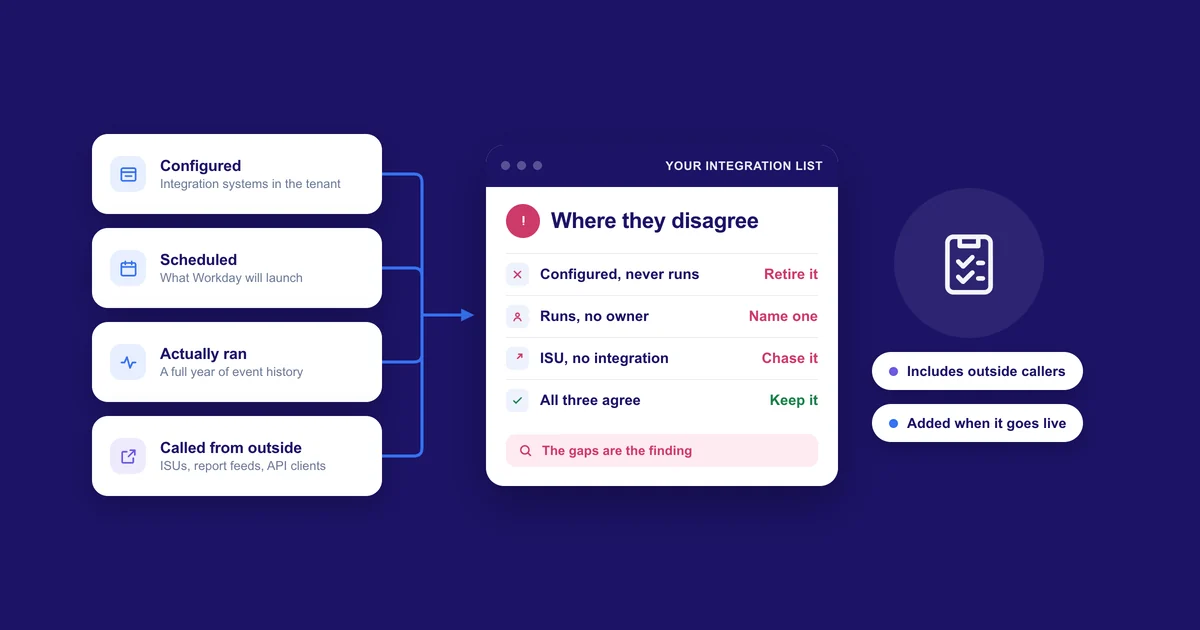
So a complete list has to cover the integrations your team runs and also the systems outside that reach in and take data.
Where to look
Start with the integration systems themselves. List every one in the tenant, including the ones with no recent events, and note the template each is built on. The template tells you what kind of build it is, and it's the first thing anyone troubleshooting it will ask.
After that, look at what's scheduled. Scheduled Future Processes shows what Workday is due to launch and when. Anything that's configured but missing from the schedule is launched by hand, triggered by an event, or no longer used. Each of those needs different handling, so it's worth working out which one you're looking at.
Then check what has actually been running. Process Monitor shows recent integration events and their status. Use a window long enough to catch quarterly and annual runs. An integration that only runs at year end and last ran eleven months ago will look abandoned if you only check the last thirty days.
Next comes the outside traffic. Every external system that connects to Workday needs an identity, and for integrations that's nearly always an integration system user. List them all, then check which security groups each one belongs to and which domains those groups can reach. We've written about that access in more detail in our piece on integration system user access. An ISU that has no integration system attached to it is often a vendor calling in from outside, and finding those is usually the most useful thing this whole exercise turns up.
Custom reports enabled as web services are the other common way data leaves. Each one works as an outbound feed, and each needs someone who knows what is calling it.
If your tenant has API clients registered for integrations, add those to the list as well.
What to record for each one
Keep the list short enough that people will actually keep it up to date.
For each integration, note its name and the Workday template or connection type it uses. Record which way the data flows and what's on the other end, whether that's a vendor, a bank or another internal system. Write down when it runs, or what triggers it if it isn't scheduled.
Add the ISU it runs as and the security groups that ISU belongs to. Put down a business owner and a technical owner, the date it last ran successfully, and a line in plain English about the data it touches. If any documentation exists, link to it, even if there isn't much of it.
There will be a temptation to add more fields. Hold off until every integration has a row with those basics filled in, because a list with gaps in it tends to stop being trusted quite quickly.
Reconciling the three lists
By this point you have three views of the same tenant, covering what's configured, what's scheduled and what has actually run. In most tenants they won't match up exactly, and the places where they don't are the useful findings.
An integration that's configured but never runs has usually been retired in practice without anyone switching it off. It's still a live integration system, often with a live ISU and real access to data, doing nothing that anyone is watching. That's normally the first thing to tidy up.
An integration that runs but has no owner anyone can name causes trouble later. Nobody notices until it fails. On that day the first hour goes on working out who to call, which is the delay we looked at in what actually happens when a Workday integration fails.
Then there are the calls coming in with no integration system behind them. If a report web service is being pulled by an ISU nobody recognises, chase that one down before anything else on the list, because until you do you can't say what data is leaving.
Owners are the hard part
Ownership is the one thing on the list that Workday can't tell you.
A name in the owner field goes out of date as soon as that person changes role. Where you can, record the team or the role as well as the name, so the integration still belongs to somebody after they move on.
It also helps to record a business owner and a technical owner separately. Whoever can fix a Studio build may have no idea whether the payroll provider still needs the file, and when an integration breaks you'll usually want to reach each of them quickly.
Keeping it up to date
A list that's built once and left alone starts drifting straight away, so it needs to be tied into the way your team already makes changes.
The simplest rule is that an integration doesn't go live until it has a row on the list. Add that to the go live checklist. When an integration is retired, switch off its ISU at the same time and mark the row as closed.
After that, go through the whole list on a regular cycle. Once a quarter suits most teams. It's also worth doing after anything that tends to shake integrations up, such as a sandbox refresh, a large Workday release, or a change of managed services provider.
Some of this can be automated. Tools that read integration history can keep the configured, scheduled and actually run views in step for you, and Insights does this across every integration in a tenant. Someone still has to decide who owns each one, and who gets the call when it fails in the middle of the night.
Where to start this week
List the integration systems and list the ISUs, then put them side by side. The ones that don't line up are where to begin, and working through them will tell you a good deal about how your tenant is really set up.