How the question usually arrives
It tends to turn up in an audit finding. The company password policy says every account changes its password every 90 days, the auditor pulls a list of Workday accounts, and a handful of them haven't changed their password since the day they were created. Those are the integration system users, and someone now has to explain why.
It's a reasonable thing to ask about. An ISU is an account with a password, and in plenty of tenants it can read a great deal of employee data. The integration team usually gets nervous at this point, because they've seen what happens when an ISU password changes without warning.
People ask about this in Workday forums every year or so, and the replies tend to be one person's story about their own audit. This is how we'd approach it.
What Workday does by default
Workday applies the tenant's password rules to integration system users in the same way it applies them to everyone else. The setting that changes this sits in the Maintain Password Rules task, in a field called System Users exempt from password expiration. Any ISU listed there keeps its password until someone changes it.
Most vendor setup guides tell you to add a new ISU to that field, and to leave Require New Password at Next Sign In unticked when you create the account. So in a lot of tenants the ISUs set up with a vendor's help are exempt, and a few built in house were never added. Those are the ones that will expire one day.
Why an expiring ISU password hurts
There's nobody at the keyboard to see a prompt. When an ISU's password expires, the integration tries to sign in, fails, and keeps failing on every run until someone updates the stored password.
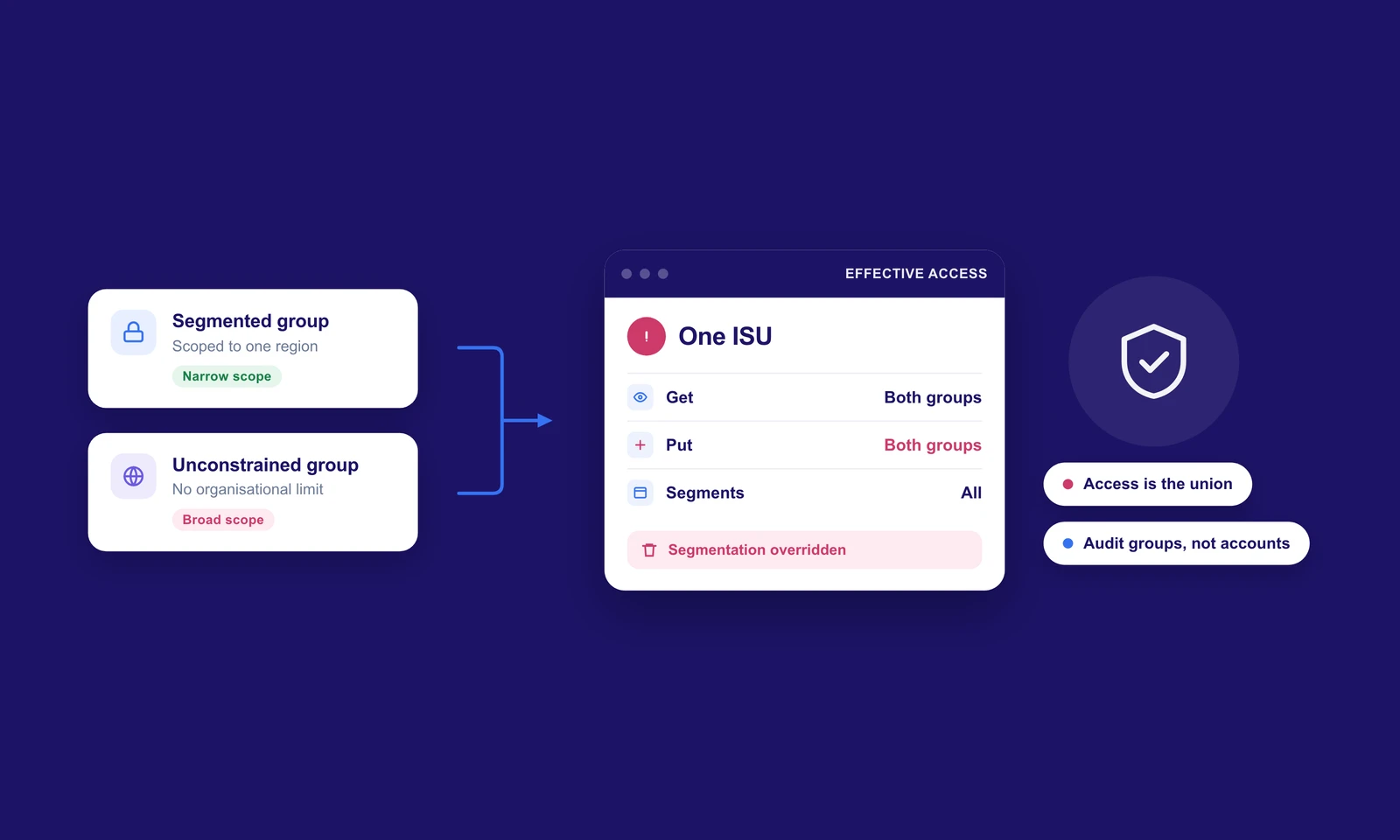
If five integrations run as the same ISU, all five fail at the same moment with the same authentication error. That's often the first time anyone realises they were sharing an account at all. The password also tends to live in several places, in the integration's own settings and often on a vendor's platform too, so changing it means coordinating with people outside your team.
Integration teams who push back on rotation are usually thinking of exactly this.
What the auditor is actually after
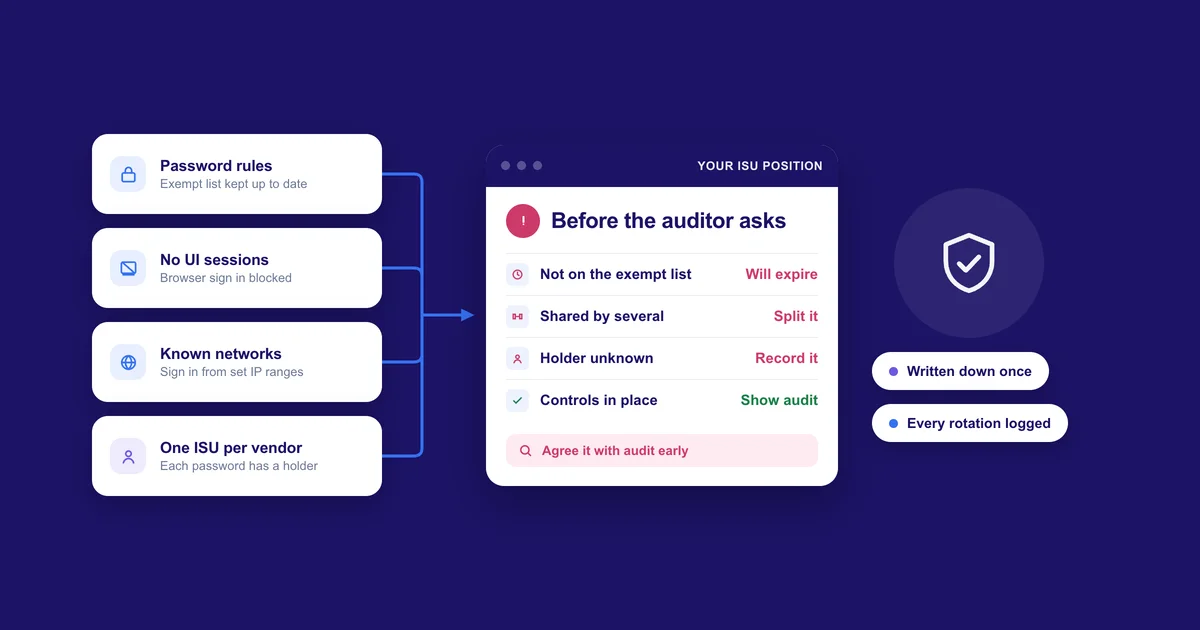
A 90 day rotation rule exists to limit how long a leaked password stays useful. When you talk to the auditor, it helps to start from that aim and show what else in the tenant limits the same risk.
The first thing to check on the ISU is Do Not Allow UI Sessions. With that ticked the account can't sign in to Workday through a browser, so a leaked password can't be used to look around the tenant.
Authentication policies help as well. Maintain IP Ranges lets you define the networks your integrations call from, and Manage Authentication Policies lets you allow a security group to sign in only from those ranges. Changes take effect once you run Activate All Pending Authentication Policy Changes. An ISU that can only authenticate from a vendor's known addresses is hard to misuse from anywhere else.
Then look at what the ISU can reach. If it only has the domains its integration needs, a leaked password does little harm. We've gone into how that access builds up in our piece on integration system user access.
It also helps if each integration or each vendor has its own ISU, with a note of who holds the password. Auditors ask about that often, and it's easy to answer when every account belongs to one integration.
Some auditors will accept these controls as meeting the aim of the rule. Agree it with yours early and get it in writing.
If you do rotate
Sometimes the passwords still have to change on a schedule. That's workable as long as each change is planned.
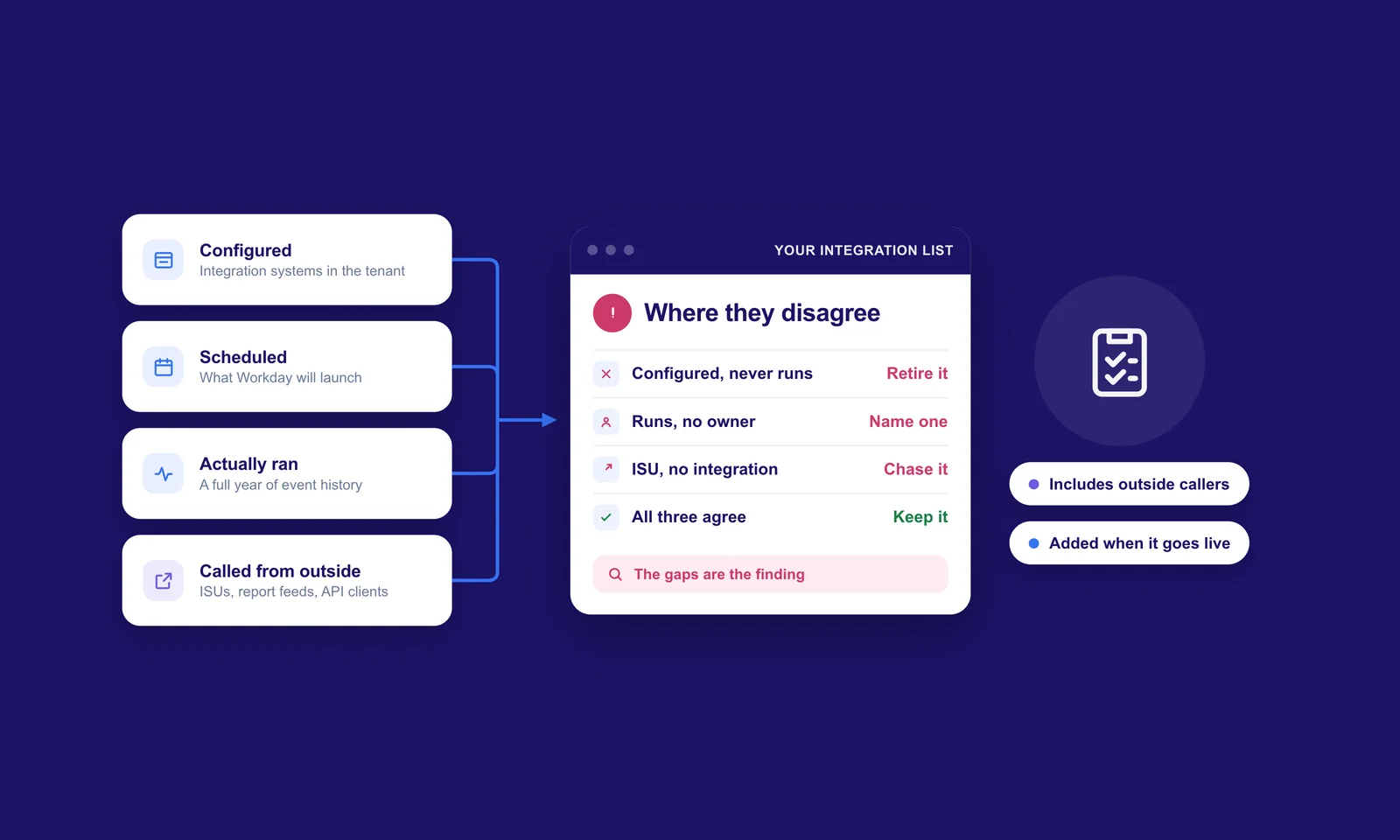
First find every place the password is stored, which means every integration running as the ISU and every external system that signs in with it. If you've already built an integration list, you'll have most of this.
Agree a window with each vendor involved, ideally a quiet time away from payroll processing. Change the password in Workday, update it everywhere on your list, and run each integration once while everyone's still on the call. Process Monitor will show you straight away if one of them is still using the old password.
Keep a short log of each rotation with the date, who did it and which integrations were tested. Auditors usually ask to see it the following year.
Moving away from passwords
For many integrations there's another route. Workday supports OAuth for API clients through the Register API Client for Integrations task, where the client is tied to an ISU and can be given a refresh token that doesn't expire. Web service callers can also authenticate with x509 certificates, which you enable in the authentication policy that covers the ISU.
Both still need looking after. A refresh token that never expires needs the same care a password does, and certificates have expiry dates of their own. Put those dates on your integration list with an owner, well before they arrive.
Writing it down
However you settle it, write it down in a page or so. Say which ISUs are exempt from password expiration and why, which controls apply to them, and how and when any rotation happens. Attach the authentication policy and the list of ISUs with their UI session setting. It saves having the same conversation from scratch at the next audit.
Where to start
Open Maintain Password Rules and compare the exemption list with the full list of integration system users in your tenant. Any ISU missing from the exemption list will expire on the tenant's schedule, so find out when that is. Any ISU on the list that no longer runs anything is worth disabling.
If a batch of authentication failures does catch you out one weekend, a tool that watches integration events, Insights among them, will flag it as it happens and show you which ISU they share.